Nano Banana 2.1: What Changed and How to Use It
Nano Banana 2.1 is Google's new image generation and editing model. What changed from Nano Banana 2, what it costs in credits, and how to use it in Studio, the Agent and Fire Images.
Nano Banana 2.1 in One Paragraph
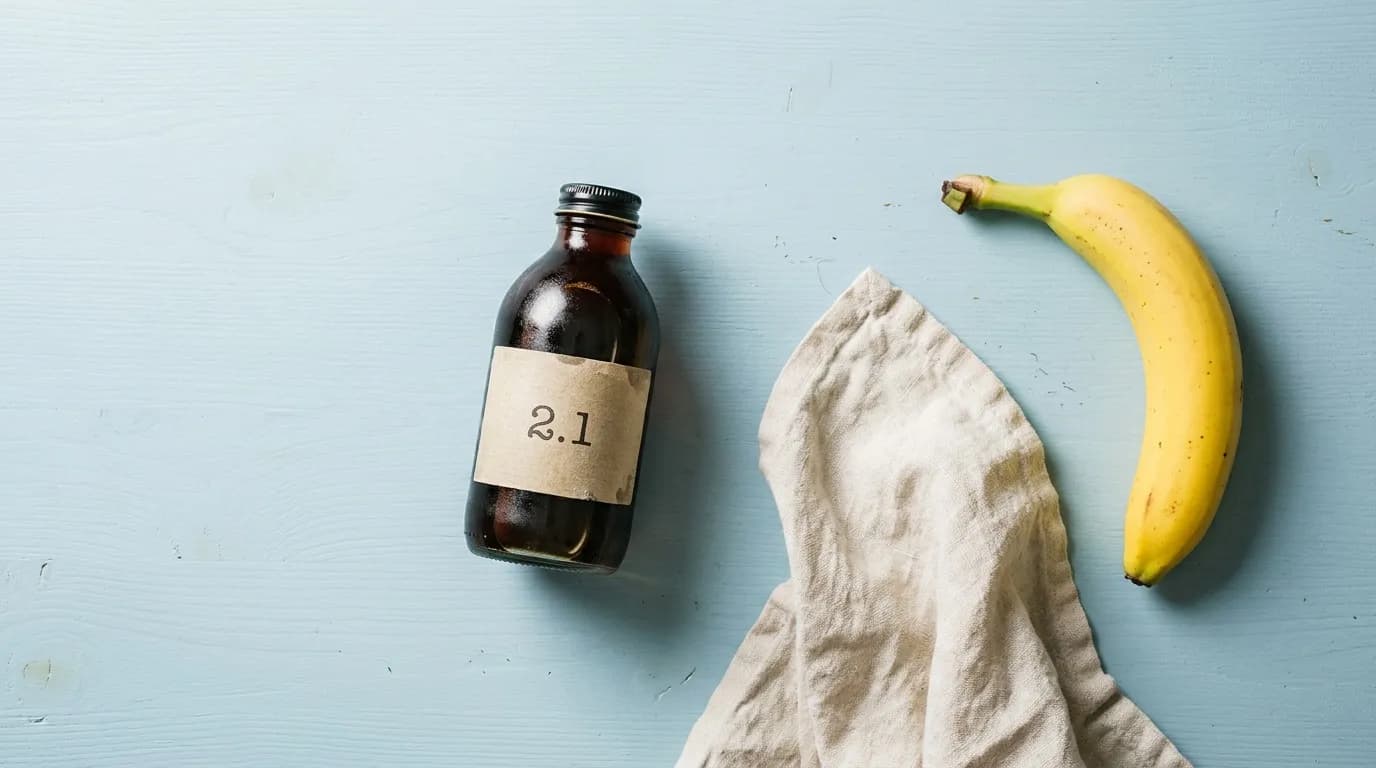
Nano Banana 2.1 is Google's image generation and editing model, the successor to Nano Banana 2. It became available to developers on 6 October 2026, and here it has now replaced Nano Banana 2 everywhere: Studio in both create and edit modes, the Agent, and Fire Images. You don't have to switch anything. Wherever you used to get Nano Banana 2, you now get 2.1.
What Changed
- It costs less: 6 credits per image and 7 per edit, where Nano Banana 2 cost 12.
- It reasons briefly before it draws, so prompts with several parts come out closer to what you actually wrote.
- Edits keep the rest of the image. You describe the change and the model leaves everything else alone.
Cheaper Than the Model It Replaces
Most model upgrades cost more. This one costs less. At about $0.01 per credit, a Nano Banana 2.1 image comes to roughly 6 cents and an edit to roughly 7, both well under the 12 credits Nano Banana 2 used to cost. Honestly, that alone makes it my default for drafts. And if a generation fails, the credits are refunded automatically, so a bad run does not eat into your balance.
Why the Short Reasoning Step Matters
Before it starts drawing, Nano Banana 2.1 thinks the prompt through for a moment. You won't notice that on a simple prompt like a cup of coffee on a table. You notice it when the prompt has several parts: two or three subjects, specific placement (the dog on the left, the bike leaning on the wall behind it), or text that has to appear on a sign or a package. Those are exactly the prompts where image models like to drop a detail or swap things around.
How to Use It in Studio
- Open Studio and choose create mode.
- Pick Nano Banana 2.1 from the model menu.
- Write the prompt: subject, setting, light, framing.
- Choose an aspect ratio: 1:1, 16:9, 9:16, 4:3, 3:4, 2:3 or 21:9.
- Generate. That is 6 credits per image.
Editing an Image
Switch Studio to edit mode, upload one or more reference images and describe the change. Nano Banana 2.1 keeps the rest of the image, which is what makes it useful for the small, boring edits that come up every day: a new background behind a product, a different outfit color, a short line of text on a poster. Each edit is 7 credits.
The trick with edits is being specific in both directions. Say what should change, then say what must stay the same. "Change the jacket to dark green, keep the face, pose and background exactly as they are" works much better than "make it green".
In the Agent and in Fire Images
In the Agent you can describe what you want and let it pick the model, or just name it: "use Nano Banana 2.1 for this". Either way it shows you a plan with the credit cost before anything is generated.
Fire Images runs one prompt across several models at once and groups the results by model. Nano Banana 2.1 is one of the seven Fire Images models. If you are not sure it is the right pick for a job, run it next to GPT Image 2.5 (8 credits) and Flux 3 (10 credits) with one image each, and look. That is 24 credits and it usually settles the question.
Run Nano Banana 2.1 next to GPT Image 2.5 and Flux 3.
Open Fire ImagesWhat It Is Good At
- Quick iterations, when you want to try ten ideas before committing to one
- Product shots
- Social visuals
- Edits like changing a background or an outfit color
- Adding short text to an image
Prompt Tips
- Describe four things: the subject, the setting, the light and the framing. "A ceramic mug on a wooden kitchen counter, soft morning window light, close up from a low angle" beats "a nice mug photo".
- Put exact text in quotes and say where it goes: a sign above the door that reads "Open Late".
- For edits, name exactly what should change and say what must stay the same.
- Several subjects? Give each one a position. Left, right, front, behind.
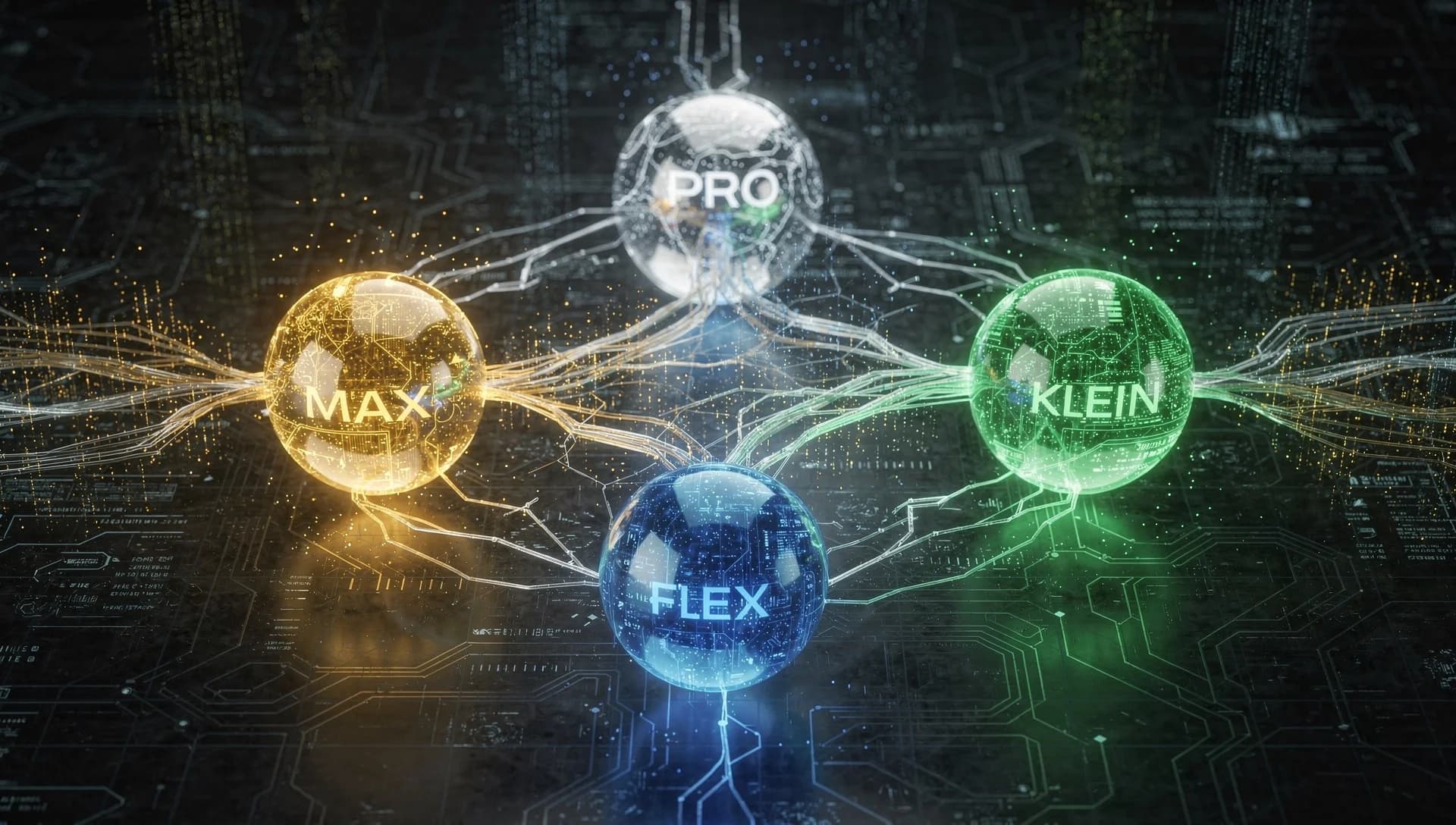
When to Use Nano Banana Pro Instead
Here, Nano Banana 2.1 renders at about 1 megapixel. That is fine for social posts and the web, which is where most images end up anyway. For print, or when you want the highest quality Google has, Nano Banana Pro is still in the lineup at 21 credits. My rough rule: iterate on 2.1, and switch to Pro only for the final image that has to hold up at a large size.
Frequently Asked Questions
Is Nano Banana 2 still available?
No. Nano Banana 2.1 replaced it everywhere: Studio create and edit modes, the Agent and Fire Images. You pick Nano Banana 2.1 in the same places.
How many credits does Nano Banana 2.1 cost?
6 credits per image and 7 credits per edit. Nano Banana 2 cost 12, so the new model is cheaper than the one it replaces.
Can I use more than one reference image for an edit?
Yes. In Studio edit mode you can upload one or more reference images, then describe the change. The rest of the image is kept.
Is Nano Banana 2.1 good enough for print?
It renders at about 1 megapixel here, which suits social posts and the web. For print, use Nano Banana Pro at 21 credits.
Try Nano Banana 2.1 in Studio.
Open Studio